Ever watched a movie or TV show you’d like to keep, only to find that your streaming service doesn't offer an easy way to save it? Enter PlayOn. It offers a DVR-like way to record streaming content, either on your PC or in the cloud. But how convenient is it in real life? PlayOn is more than meets the eye. There are real-time recording and subscription costs to consider. We tried out PlayOn Home and checked out PlayOn Cloud more closely to see how well they work and if they are worth the money.
PlayOn is a streaming video recorder designed to save movies, TV shows, and other supported online videos for offline viewing. Instead of simply providing a playback link, it works like a digital video recorder: it plays a supported stream and records it. PlayOn offers two main products, PlayOn Home and PlayOn Cloud. Although their basic purposes are the same, their recording methods and equipment requirements differ.
PlayOn Home is a Windows PC application. It turns your computer into a streaming DVR, allowing you to browse supported channels, record shows, and save recordings to your computer. PlayOn Cloud takes a different approach. You select a movie or TV episode in its mobile app, and PlayOn records it on a virtual computer in the cloud. Once recording is complete, you can download the resulting video to your device.
| Feature | PlayOn Home | PlayOn Cloud |
|---|---|---|
| How It Works | Records streaming videos directly on your Windows PC | Records streaming videos on remote cloud servers |
| Recording Device | Requires a Windows PC | Managed through an iOS or Android app; no PC required |
| Recording Speed | Real-time | Real-time |
| Maximum Recording Quality | Up to 1080p with a paid plan | Up to 1080p (3 credits per recording) |
| Free Option | Free SD recording of ad-supported content | Free app; recording requires credits |
| Video Storage | Saved directly to your PC | Stored in the cloud for 7 days; download to your device for permanent access |
| Best For | Users who prefer recording and managing videos on a Windows PC | Users who want to record videos remotely without keeping a PC running |
👥 PlayOn Home is more suitable for users who want a PC-based DVR, while Cloud is convenient for people who prefer to submit recordings from a mobile device.
PlayOn records streaming videos in real time. You need to wait until playback finishes to get the complete recording.
PlayOn Home can automatically record new episodes of subscribed TV shows and lets you record an entire season.
PlayOn Home subscribers can use AdSkip to automatically skip commercials in supported recordings, making offline playback more convenient.
Play recordings without the original streaming service, or cast them to a TV with PlayOn Home.
PlayOn Home supports subtitles and closed captions, while PlayOn Cloud can capture captions available in the original content.
PlayOn supports a range of popular services like Netflix, Hulu, Amazon Prime Video, and Disney+. Support for other channels will differ between PlayOn Cloud and PlayOn Home, and the list of channels will grow over time. Please check PlayOn's official What's On page for the latest channel information before subscribing.
Step 1 Visit the PlayOn website and create a free account to access the PlayOn Home download.
Step 2 Download and install PlayOn Home on your Windows PC, then launch the application.
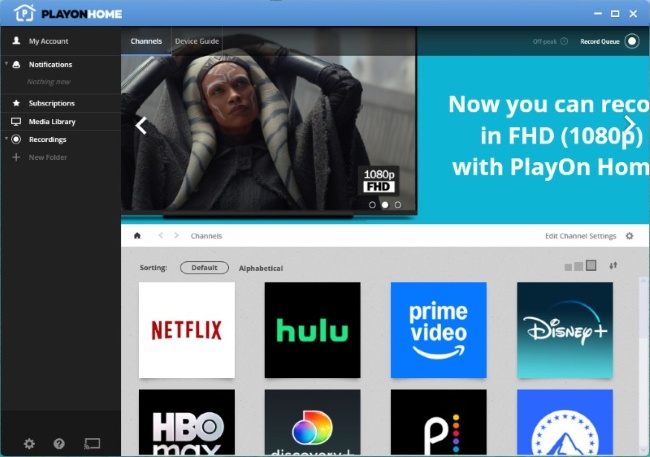
Step 3 Browse the available channels, select a supported streaming service, and find the movie or TV episode you want to record.
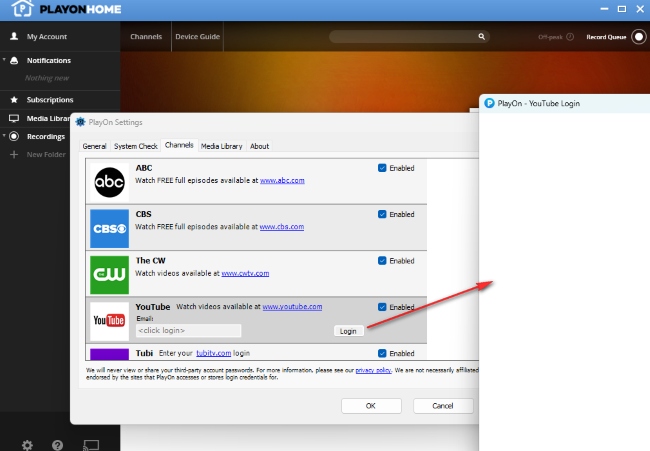
Step 4 Sign in to the streaming service if required, then select the recording option to start recording.
Step 5 Once recording is complete, find the video in the Recordings column and play it offline.
Step 1 Download the PlayOn Cloud app from the App Store or Google Play, then sign in to your account.
Step 2 Open the Channels tab and choose a streaming service. Browse or search for the movie or TV show you want to record.
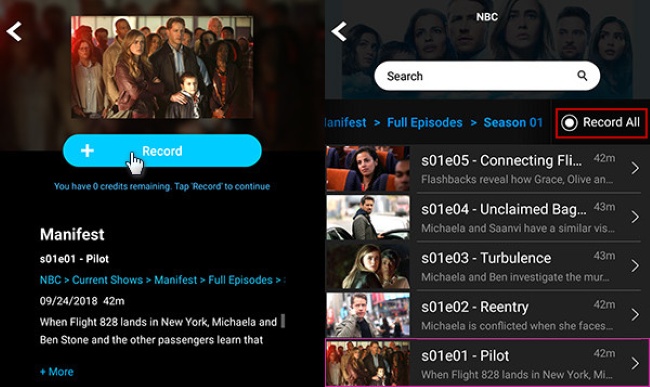
Step 3 Select the title and tap Record. For TV shows, tap Record All to record an entire season.
Step 4 Go to Settings > Download Options to set up automatic downloads to your device. You can choose Wi-Fi, cellular data, or off-peak hours.
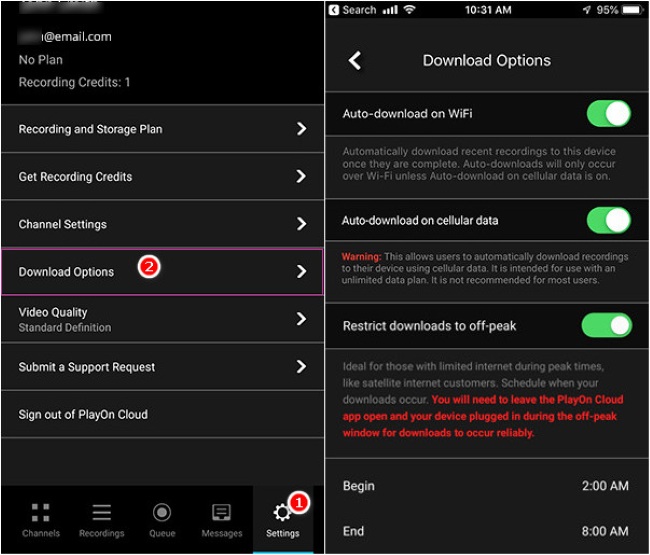
Step 5 Once recording and downloading are complete, go to Recordings > Device, select a video, and tap Play to watch it offline.
Note: To save recordings to a computer, install PlayOn Cloud Downloader on your PC or Mac and sign in.
To evaluate PlayOn fairly, we tested its recording workflow and examined the generated files.
| Test Item | Details |
|---|---|
| PlayOn Version | PlayOn Home 5.0.430 |
| Operating System | Windows 11 Pro (26H2) |
| CPU | Intel Core i3-14100 |
| RAM | 16 GB DDR5 |
| Streaming Service | YouTube |
| Video Duration | 3–4 minutes |
| Analysis Tools | MediaInfo |
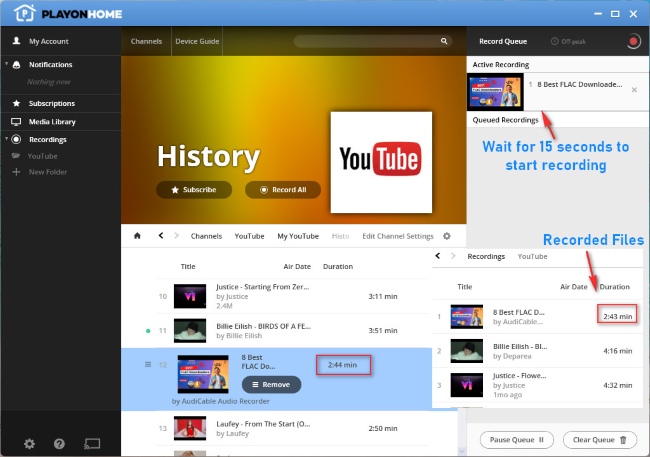
One of the most important factors to consider when choosing PlayOn is the speed of recording. Instead of using an existing video file, PlayOn records in real time. This means that generally, for a 30-minute episode, you will need at least 30 minutes to record it, not including any extra processing or download times. We recorded videos of various lengths to test this in practice and compared the length of the playback to the time it took to complete each recording.
| Test Video | Video Duration | Actual Recording Time | Result |
|---|---|---|---|
| Test 1 | 03:11 | 04:32 | Pass |
| Test 2 | 03:51 | 04:16 | Pass |
| Test 3 | 03:28 | 04:07 | Pass |
| Test 4 | 02:43 | 02:42 | Fail – Incomplete recording file |
Test Result: The actual recording duration is slightly longer than the original video’s length, as there is a watermark bearing the PlayOn brand name and user account details on one frame at both the start and end of the video, and the recording did not skip the adverts; the duration of the adverts was also included in the recording. But test 4 is an exception: the beginning of the video portion of the recorded file has been cut off, resulting in an incomplete recording.
PlayOn Home runs on your own computer so system performance can affect the recording experience. If you’re recording at a higher quality, a computer with less processing power may have more of a hard time. We tested how CPU and memory usage changed while PlayOn recorded a video.
| Metric | Idle | During Recording |
|---|---|---|
| CPU Usage | 0.2% | 4.5% |
| Memory Usage | 58 MB | 89 MB |
During our testing, PlayOn Home proved to be fairly light on resources. CPU usage went from 0.2% idle to 4.5% recording, and memory consumption went from 58 MB to 89 MB. The results show that PlayOn Home put a relatively low amount of stress on our test PC during recording.
Subtitles and closed captions are locked behind a paywall on PlayOn Home. Since we tested the free version, none of our recordings had them.
There's a noticeable lag when you hit Record. It takes roughly 15 seconds for PlayOn to actually start capturing. On top of that, one of our test recordings missed the opening entirely, so we ended up with an incomplete file.
PlayOn has different pricing models for Home and Cloud. Home uses a paid plan for its full feature set, while Cloud charges recording credits and offers optional storage plans.
PlayOn Home Free is a convenient way to try the software, but it comes with some significant limitations. It only allows users to record ad-supported content in standard definition (SD).
A paid PlayOn Home plan is required for additional features, including:
According to PlayOn's official website, the paid PlayOn Home plan costs $4.99 per month and includes unlimited recordings.
PlayOn Cloud uses a credit-based recording system. Each recording consumes credits according to the selected quality:
| Recording Quality | Credits Required |
|---|---|
| SD (480p) | 1 credit |
| HD (720p) | 1 credit |
| Full HD (1080p) | 3 credits |
Each recording is automatically stored in the cloud locker for seven days at no additional storage-plan charge. You can download it to your device during this period and keep the file locally for as long as you like. If you want to keep recordings in the cloud beyond seven days, you'll need a Cloud storage plan.
Current official Cloud storage plans include:
| Monthly Price | Cloud Storage | Monthly Credits |
|---|---|---|
| $4.99 | 100 GB | 30 |
| $9.99 | 500 GB | 30 |
| $16.99 | 1 TB | 30 |
| $29.99 | 2 TB | 30 |
| $49.99 | 4 TB | 30 |
All plans include 30 recording credits per month. These credits can be used for recordings of any length but must be used within the subscription month. For example, 30 monthly credits can cover up to 30 SD or 720p recordings, or 10 recordings in 1080p.
Additional Anytime Credits are also available for purchase and do not expire.
PlayOn Home costs $4.99 a month and allows unlimited recording. This could therefore prove good value if you like to record a lot. But you must watch programs as they are recorded. We also found that there was a 15-second ‘warm-up’ time and that PlayOn Home sometimes fails to create a complete file.
Whilst similar in price at $4.99 a month, Cloud provides extra benefits in the form of 30 credits and 100 GB of storage. This works well for a handful of SD or 720p programmes. However, should you wish to record 1080p programs, then each one costs you 3 credits. Should you frequently record Full HD programmes, your credits will soon run out, and so again you will end up paying more.
Value for money? Yes, if you are constantly using PlayOn. But should you find the live program playback functionality stressful, then perhaps you should consider an alternative. NoteBurner Video Downloader is another option to consider for saving online videos.
NoteBurner Video Downloader is more focused on downloading than PlayOn. It can download videos at up to 5x real-time speed, and it can batch download – you need not wait for each video to play to the end. It also offers flexible output options like MP4 and MKV video formats, multiple subtitle types, and original multi-language audio tracks. NoteBurner supports over 1,000 sites, so it's a handy alternative for users wanting more control of their downloaded video files.
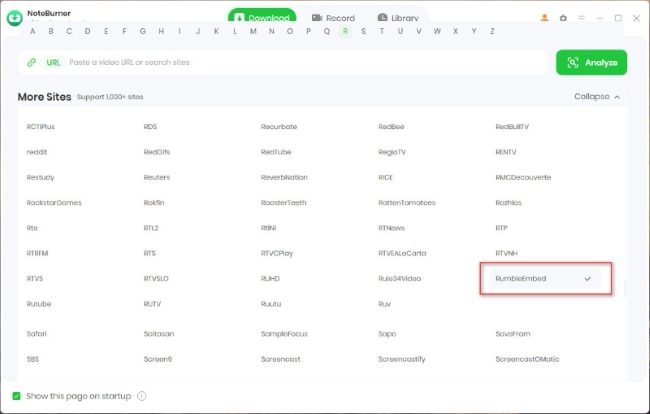

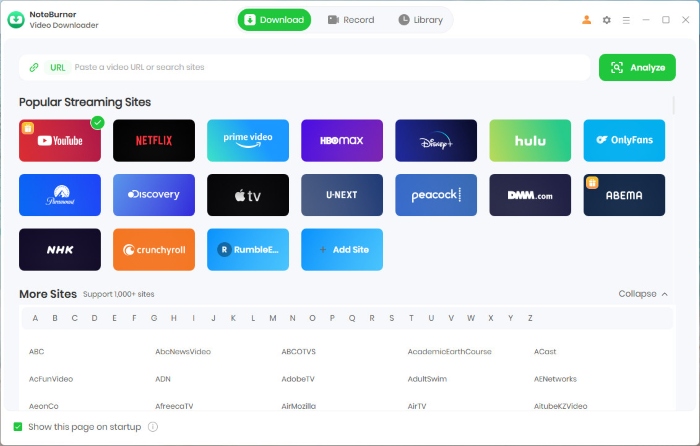
Step 1 Launch NoteBurner YouTube Video Downloader and choose the streaming platform you want to download a video from. Here we use YouTube as an example.
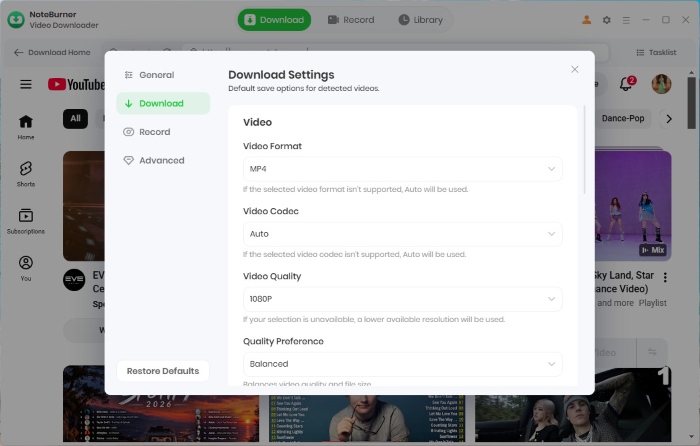
Step 2 Click Settings to choose your video format, quality, and output folder. Video downloads support MP4 or MKV at up to 8K when available.
Step 3 Search for a YouTube video or playlist using the built-in browser.
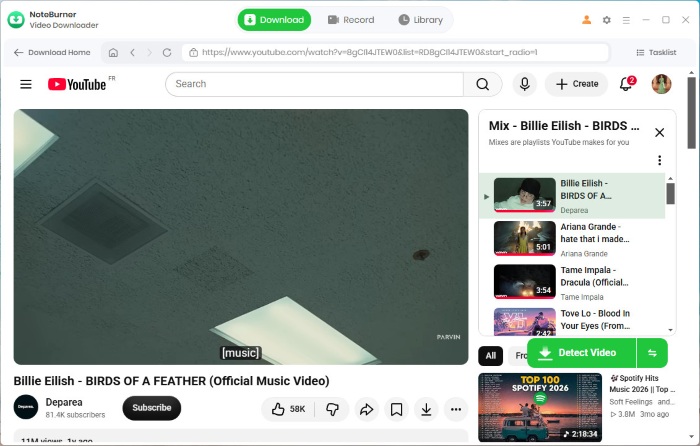
Step 4 Click the Detect Video button to choose video quality, audio tracks, and subtitles.
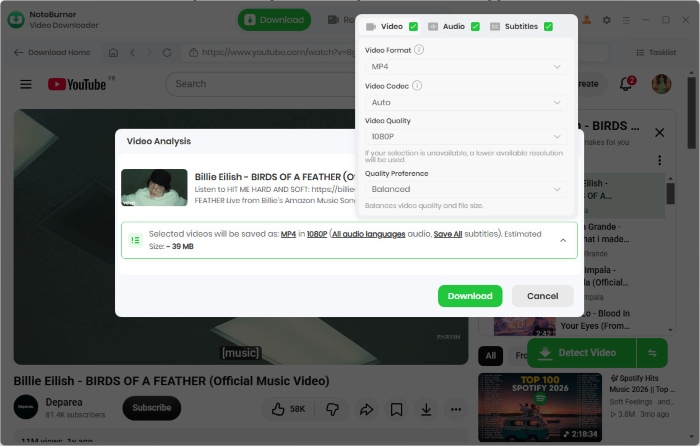
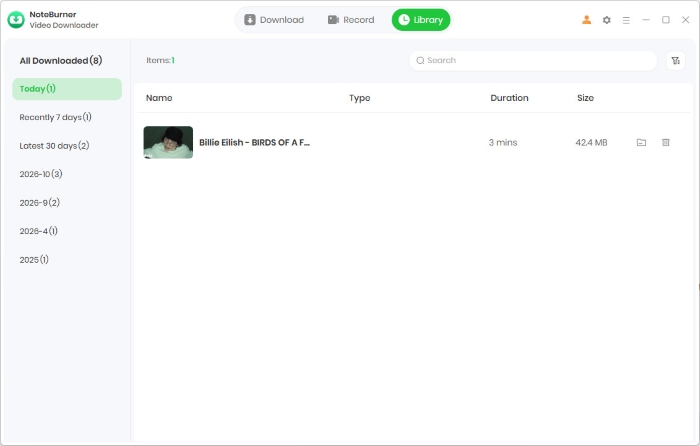
Step 5 Click Download to save the selected videos or audio files. When finished, open Library to access your downloads.
Disclaimer: For personal/educational use only. 🚫 Do not distribute downloaded music/video for commercial use.
| Feature | PlayOn | 🏆 NoteBurner All-In-One Video Downloader |
|---|---|---|
| Main Workflow | Streaming video recording | Desktop video downloading |
| Supported Services | Popular streaming channels | 1,000+ listed websites |
| Windows Support | Yes (PlayOn Home) | Yes |
| macOS Support | Cloud recordings available on Mac; Home recording is Windows-only | Yes |
| Output Formats | MP4 | MP4, MKV |
| Maximum Advertised Quality | Up to 1080p | Up to 8K (YouTube); up to 1080p (major streaming services) |
| Series Support | Record entire seasons and new episodes | Batch download TV series |
| Free Usage | Limited free Home features; Cloud credits or paid plans | Free downloads from YouTube and Abema; paid license for other streaming services |
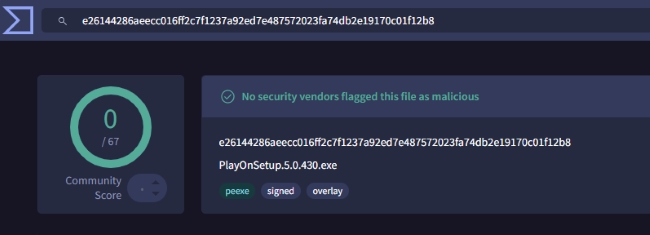
We scanned the PlayOn installer with VirusTotal, and none of the 67 security engines flagged it as malicious. This is a reassuring result, although it doesn't guarantee that the software is entirely risk-free. To reduce potential risks, download PlayOn from its official website and keep the application updated.
PlayOn offers limited free features. PlayOn Home allows users to record SD-quality, ad-supported content for free, while features such as HD recording and AdSkip require a paid subscription. PlayOn Cloud is free to download, but recording requires credits.
PlayOn Home is designed for Windows PCs and does not support direct recording on macOS. However, PlayOn Cloud can be managed through its iOS and Android apps, and its recordings can be downloaded to a Mac using the PlayOn Cloud Downloader.
If the PlayOn Home installation hangs, try enabling .NET Framework 3.5 in Windows. The installer hung up for approximately 30 minutes during our test. I was able to fix it by manually enabling this Windows feature. To do that, press Win + R, type optionalfeatures, check .NET Framework 3.5, and click OK. Run the PlayOn Home installer again after installation.
If PlayOn fails to record, try these quick fixes:
If none of these steps work, contact PlayOn Support for further help.
If you want to find a reliable Netflix video downloader to download HD quality Netflix videos for offline viewing, here we can recommend you to the top 4 Netflix video downloaders. Learn More →
PlayOn works well for DVR-style recording, but its real-time process means a 30-minute video takes at least 30 minutes to record. Our test also found a startup delay and one incomplete recording. So if you regularly save movies or TV series, NoteBurner Video Downloader is a more efficient choice. It supports batch downloads, saves videos without waiting for playback, and offers more control over output formats and subtitles.